
To recover pages lost during a website migration, compare the list of URLs the old site had with what the new site returns today, separate missing content from broken routing, and rebuild only the gaps you can support with a real source. Keep useful old paths where you can, and redirect genuine moves to equivalent pages. Do not send every missing address to the homepage. This guide shows where to find the old URL list (including the Wayback Machine), how to classify each failure, where to get the lost content back, and how to close the job with evidence.
If you want an editable site instead of raw files, see our archive.org to WordPress service. You can also request a free check of what the archive saved first.
This is targeted repair of a website that still exists. The first task is finding what failed, not rebuilding the whole domain or importing a second copy of content that is already there.

Signs that pages went missing in the migration
- Google Search Console shows a jump in “Not found (404)” pages in the Pages report after the move date.
- Organic traffic to specific sections drops while the rest of the site holds steady.
- Visitors or customers report bookmarks and old links that no longer work.
- Backlink tools or referral logs show visits arriving at error pages.
- The new sitemap has noticeably fewer URLs than the old one did.
Any one of these is a reason to run a proper comparison rather than fixing URLs one at a time as they are reported.
Compare old and current inventories
Collect the pre-migration page list from CMS exports, old sitemap files, backups, server logs or owner records. If those are incomplete, add historical references from the Wayback Machine. Keep each source and date beside the URL: an old menu entry is a lead, not proof that the page body survives.
For each old URL, record the current HTTP status and final destination. Search the current CMS for the content before calling it lost. A page may still exist as a draft, under a changed slug or under a different parent path. Inspect a separate backup copy rather than overwriting the newer production site.
Use the Wayback Machine to rebuild the old URL list
If the old sitemap is gone, the archive’s CDX index can list every URL it captured for the domain before the migration date. A request such as https://web.archive.org/cdx/search/cdx?url=example.com&matchType=host&to=20250601&filter=statuscode:200&collapse=urlkey&fl=original returns one line per captured page. The Wayback Machine API guide explains each parameter. Treat the result as a list of leads: it includes old campaign pages and files you may not want back.
Distinguish three kinds of migration failure
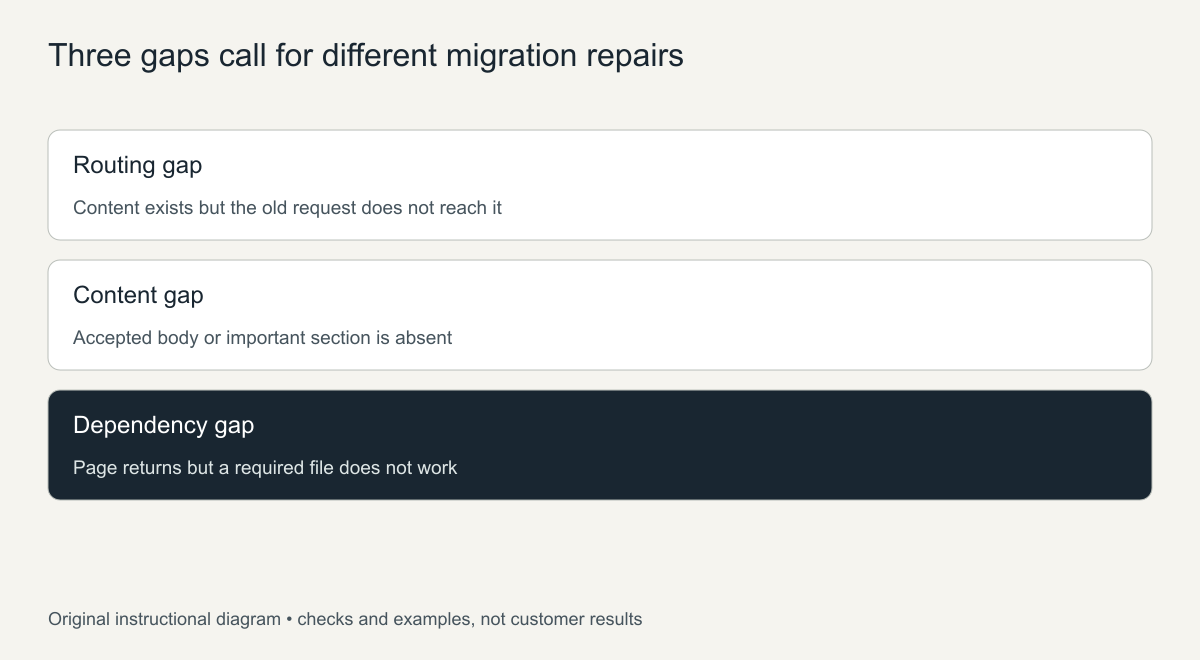
A routing failure means the right content exists but the old request does not reach it. A content failure means a page or an important section is absent. A dependency failure means the page loads but an image, stylesheet or download no longer works. Each needs a different repair.
The reconciliation sheet below is illustrative; its rows are not findings from a customer migration.
| Old path | Example current result | Evidence to inspect | Action if confirmed |
|---|---|---|---|
/services/design.html |
404; equivalent page exists elsewhere | Current page body and the old-to-new map | Keep the old route or redirect to the equivalent page |
/guides/setup.html |
404; body absent | Backup or a suitable archived capture | Recreate the guide, then test its URL |
/downloads/manual.pdf |
Link returns an HTML error | The actual document and its version | Restore the real file, not a renamed error page |
/retired-offer.html |
No current equivalent | The owner’s relevance decision | Document the removal instead of redirecting arbitrarily |
Recover the missing content from the right sources
Use backups, exports and the owner’s original files first; they hold the exact wording, images and metadata. When those are unavailable, open the archived capture of each missing page from just before the migration. Confirm the body, the date and that it is still relevant, and note any sections or media that were not captured.
The post-recovery guide separates captured body text from titles, dates and authors. Apply the same care to lost landing pages. New copy can fill a current need, but do not describe it as recovered original wording.
Common places lost content hides after a migration
- Drafts or trash in the new CMS, created when the import failed halfway.
- Custom post types or page builders the new theme does not display.
- Media files left on the old server or old CDN that was switched off.
- Language or regional versions that the import tool skipped.
- Pages excluded by a
noindexsetting or a password carried over by mistake.
Prioritize real reader tasks
Start with current services, documentation, downloads and pages that the owner’s analytics or Search Console show were actually used. Look at shared dependencies too: fixing one missing stylesheet can repair dozens of pages, while recreating a single expired campaign may not be worth it.
Give each gap an owner and an action. A long list of 404s does not justify automatic redirects or wholesale regeneration. The historical URL inventory guide helps you classify leads without treating every discovered URL as a page you must bring back.
Implement path handling after the content decision
Recreate each priority page in the current structure, or restore the route to existing equivalent content. For a necessary move, add a permanent redirect to the most relevant page and update internal links so they point straight at the new address. The URL-preservation workflow shows how to document exact paths and routing rules.
Google’s site-move guidance supports mapping URLs and checking the deployed result. Fixing a migration does not guarantee that former rankings return.
Close the reconciliation sheet with actual evidence
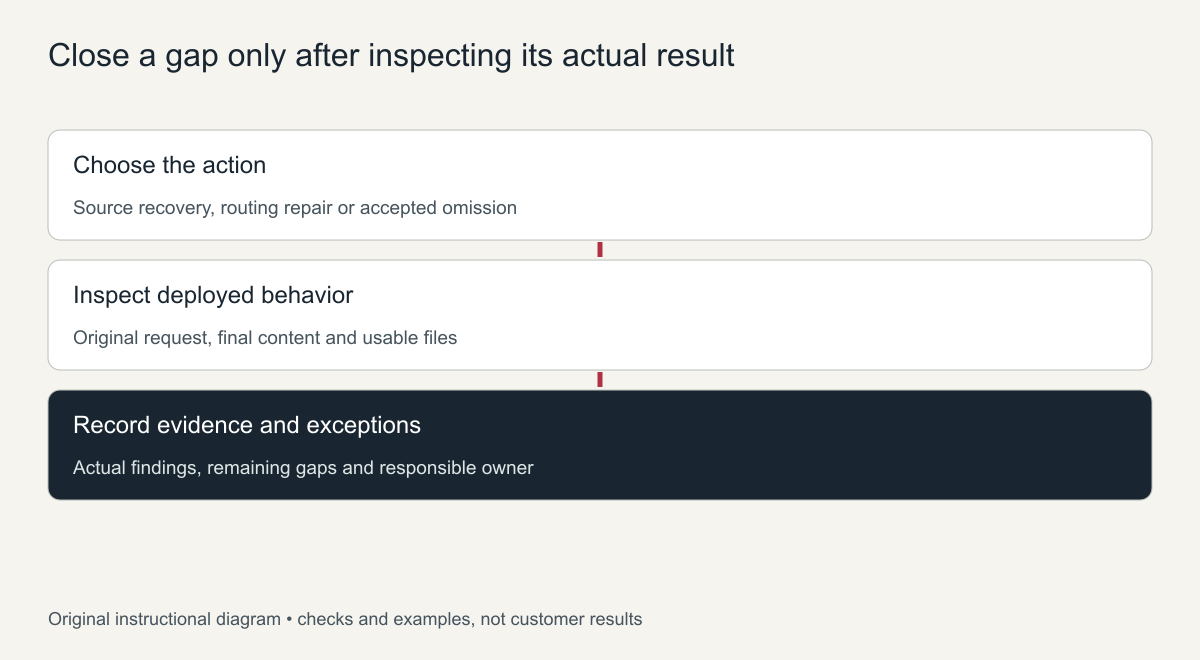
Request each old URL, check the final content and verify its files and links. Record status, destination, date and remaining issues. Compare the live pages with the current sitemap separately; a saved CMS record does not prove that the public route works. Then ask Search Console to validate the fix for the 404 group so you can watch the count fall.
Keep approved omissions apart from defects and unresolved gaps.
How to avoid losing pages in the next migration
- Export a full URL list (sitemap, CMS export and analytics landing pages) before anything moves.
- Write the old-to-new map and get it approved before launch, not after.
- Crawl the staging site and request every old URL against it.
- Keep the old server or a full backup available for at least a few months.
- Check the Search Console Pages report weekly for the first two months.
Recover pages lost during a website migration: quick triage
- Collect the old URL list. Use the old XML sitemap, an export from the old site, or the archive’s list of captured URLs.
- Check which URLs now fail. Test each old address on the new site and note those that return errors or land on the wrong page.
- Look at Search Console. The Pages report shows URLs Google knew that now return errors, and the Performance report shows which lost pages still had impressions.
- Check analytics landing pages. Old landing pages with real traffic deserve priority.
- Check external links. Pages with backlinks should come back or redirect to the closest equivalent.
- Restore or redirect. Rebuild important missing pages from backups or snapshots, and redirect the rest to the best matching page.
Preventing page loss in your next migration
Most migration losses come from the same causes: content types that did not import, changed permalink settings, and pages that were never in the menu. Before any future move, export a full URL list, test a sample of old URLs on a staging copy, and keep the old site available until every important page has been checked on the new one.
Writing a redirect map
A redirect map is a two-column list: the old URL on the left and the new destination on the right. Fill it from your triage list, matching each lost page to the page that now covers the same topic. Keep one rule per old URL, avoid sending many unrelated pages to the same destination, and never redirect to a page that itself redirects. Once the map is ready, add the rules in your redirect plugin or server configuration, then test every line before you mark the migration problem as fixed.
Keep the map file. It documents what moved where, and it is the first thing to check if Search Console reports new errors later.
Finally, keep an eye on the old URLs for a few weeks after the fixes. New errors can appear as search engines recrawl, and catching them early prevents another loss of traffic.
Frequently asked questions
Can I recover pages lost during a website migration without a backup?
Often yes. If the pages were public and archived, their text and images can be rebuilt from snapshots, and search tools can help confirm which pages existed.
Should every lost page come back?
No. Bring back pages with traffic, links or business value, and redirect outdated ones to the closest relevant page.
How soon should lost pages be fixed?
As soon as possible. Search engines and visitors keep hitting the old URLs, and errors on pages with links waste that value the longer they stay.
Frequently asked questions
Can I recover pages lost during a website migration without a backup?
Often, for public pages. If the Wayback Machine captured them before the move, you can recover their text and many images. Anything never captured, such as private or logged-in pages, needs another source.
Should I redirect all 404s to the homepage?
No. Redirect only to a genuinely equivalent page. Mass homepage redirects confuse visitors, and Google treats them as soft 404s.
How long until Google notices the fixes?
It varies. Validating the fix in Search Console and keeping internal links and the sitemap up to date helps Google recrawl sooner.
For help scoping a limited repair, send the failing URLs and what each page was for with an archive and source review request. We will say which pages can be rebuilt from the archive, which need routing fixes, and which cannot be established from the surviving evidence.